
Appearance
Writing Playbooks & Scripts
A job template holds two things: what to run (an Ansible playbook or a bash script, stored inline as text) and how to run it by default (project, credential, target hosts, sudo). This page covers authoring the template itself — see Execution Options for what you can override at run time.
Two content types
| Type | Engine | How it runs |
|---|---|---|
| Ansible Playbook | ansible-playbook, invoked once per run | All resolved target hosts are written into a single generated inventory; the playbook runs against all of them in one ansible-playbook subprocess, so Ansible's own internal batching/forking applies. |
| Bash Script | Direct SSH (or local, if explicitly opted in) | The script runs once per target host, sequentially, over SSH (bash -s), or — only when a template explicitly sets run_local — once, locally inside the automation-service container. |
There's no separate "playbook file path" — the field exists in the data model for historical reasons but is never read; everything is the inline content in the code editor.
Creating a job template
From Automation → Playbooks & Scripts, click + New Playbook (admin, support, or superadmin only):
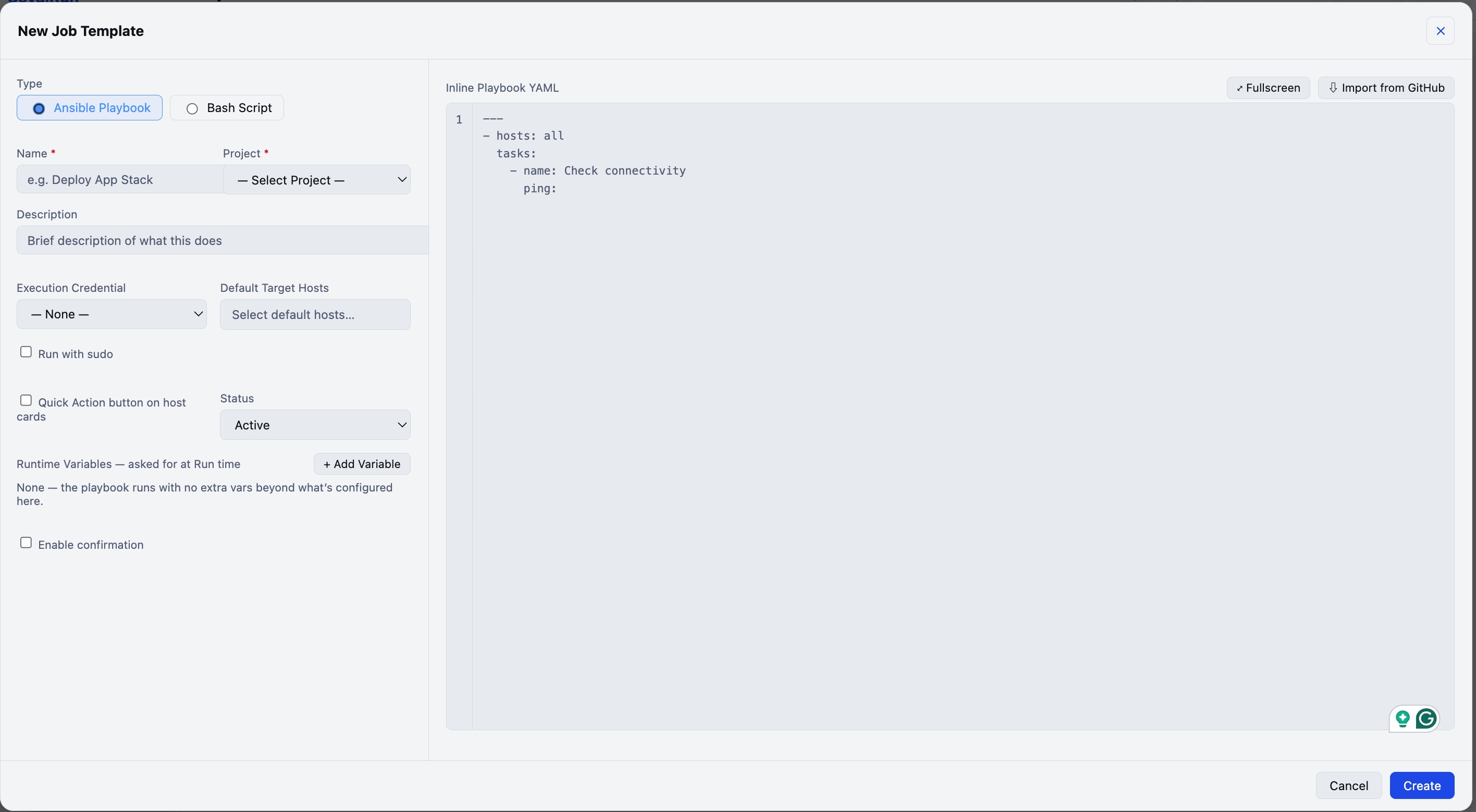
- Type —
Ansible PlaybookorBash Script. - Name / Project (required) — the project is just a grouping folder; create one first under a project picker if none exists yet.
- Description — shown in the list/grid views.
- Execution Credential — the login SeyalRun uses to reach hosts by default for this template (can be overridden per run — see Execution Options).
- Default Target Hosts — hosts this template runs against when a run doesn't specify its own targets.
- Run with sudo — when enabled, an optional sudo credential can be pinned; leave it unset to reuse the login credential's own password for
sudo. The sudo/become password is always resolved from a stored credential at run time — it's never typed into the template and never written into job history. - Quick Action button on host cards — when enabled, this template gets a one-click "▶ Name" button directly on the Assets page for each host, running against just that host.
- Status —
Activetemplates can be run;Disabledones can't (the Run button is greyed out, and scheduled/webhook-triggered runs are rejected too). - (Bash Script only) Options / Arguments — positional arguments passed to the script (
$1,$2, …); quote arguments containing spaces.
The code editor
The main field is a line-numbered code editor for the actual playbook YAML or script body:
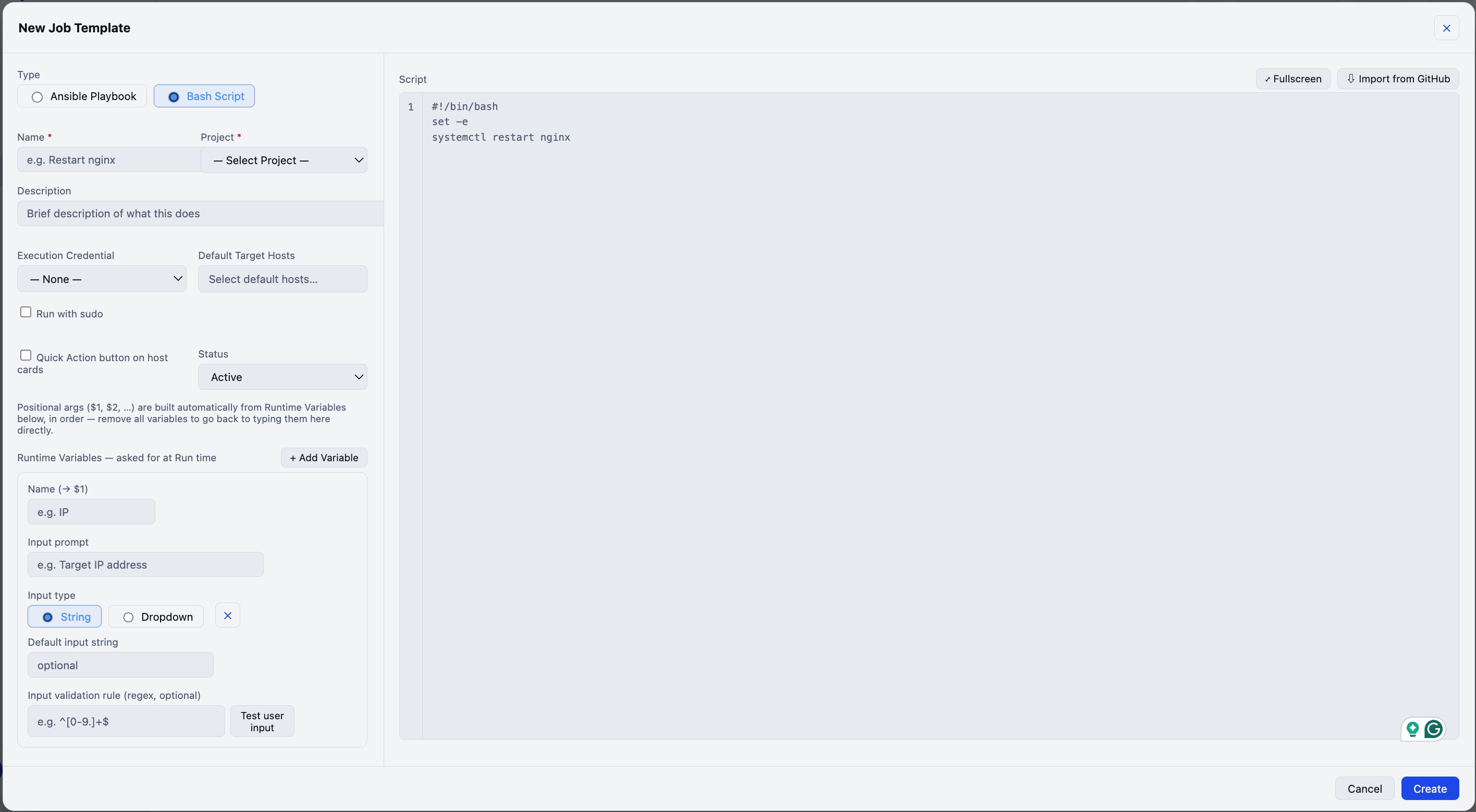
As you type, SeyalRun lints client-side:
- Ansible Playbook — the content is parsed as real YAML (via
js-yaml); a parse error shows the offending line. A clean parse shows "✓ Valid YAML — parses as a list of plays". - Bash Script — a heuristic linter checks for unmatched quotes, unmatched brackets, and unclosed
if…fi/for|while|until…done/case…esacblocks. This is a lightweight sanity check, not a full shellcheck — it won't catch every possible bash bug.
Importing from GitHub
Instead of pasting content by hand, click ⇩ Import from GitHub:
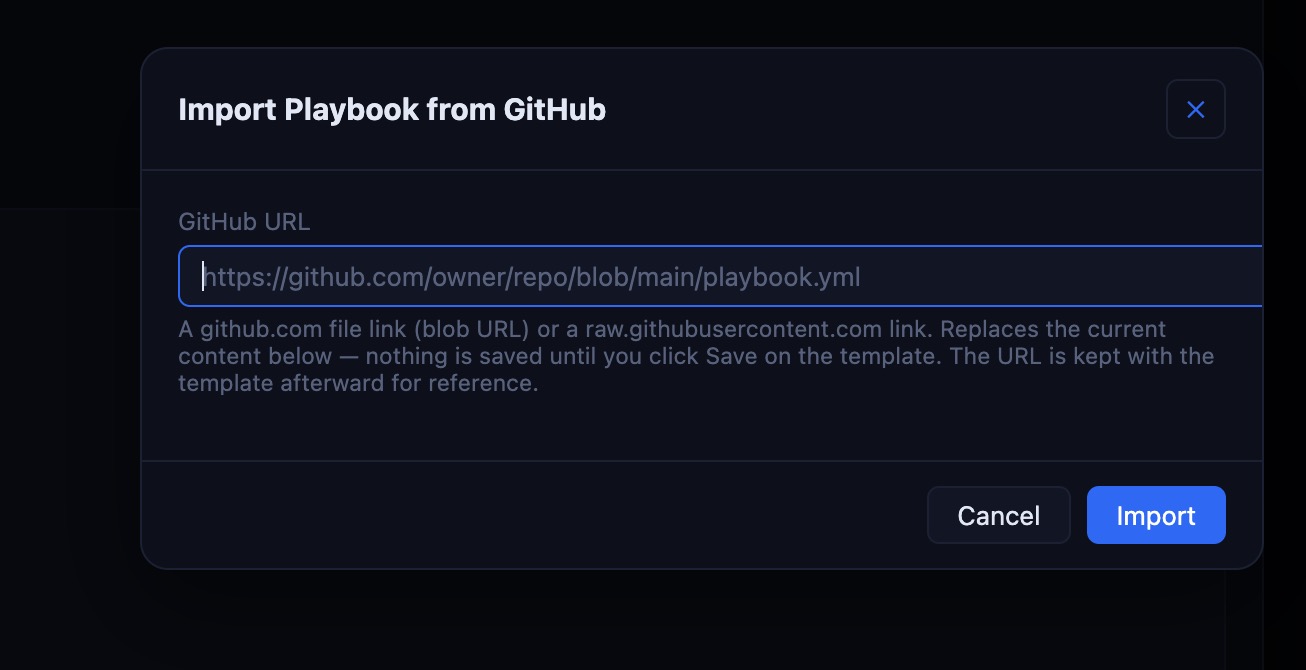
- Accepts a
github.com/.../blob/<branch>/<path>file link or an already-rawraw.githubusercontent.comURL — nothing else. Redirects are never followed, and the fetch is capped at 512 KB. - This only prefills the code editor — nothing is saved until you click Save on the template, so you can review and edit the imported content first.
- The template type (Ansible vs. Bash) auto-detects from the imported file's extension (
.sh/.bash→ Bash Script, everything else → Ansible Playbook), so the right linter runs against it. - The source URL is kept on the template afterward for reference, shown as "Imported from …" under the editor and as a "Source" link in the grid view.
Browsing existing templates
Playbooks & Scripts supports both a list and a grid view, plus a search box (name/description) and a project filter:
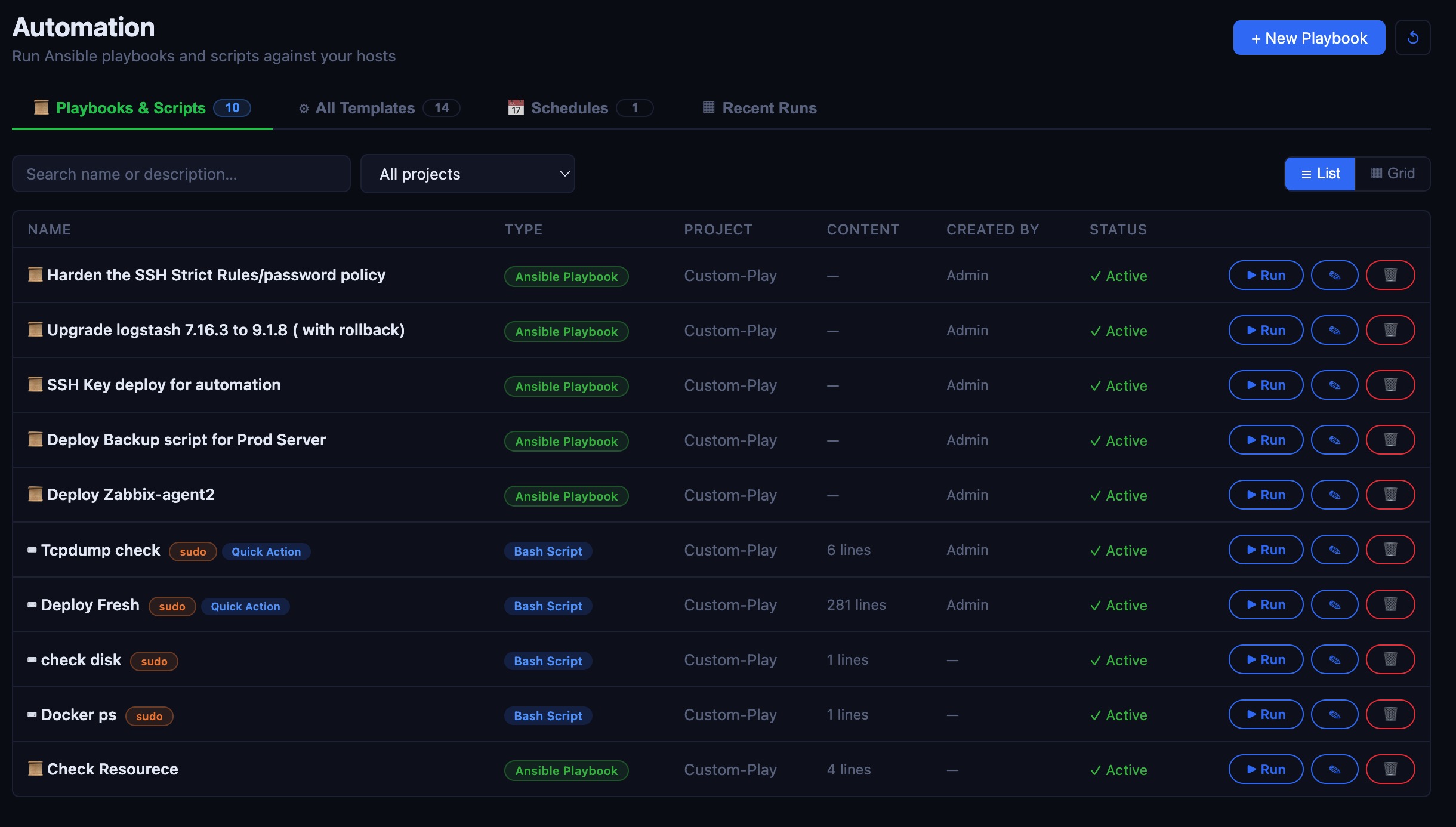
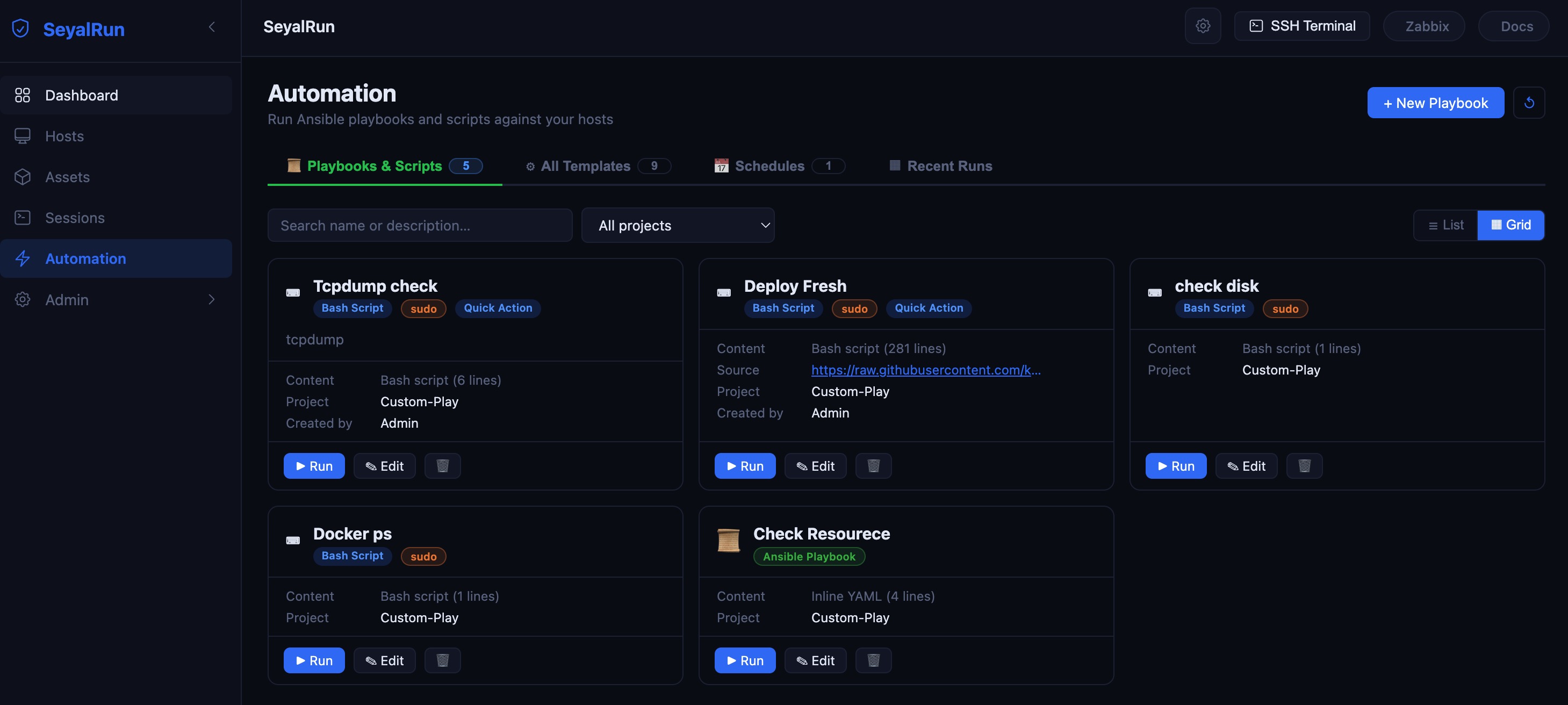
Every template row shows its type (Ansible Playbook / Bash Script badge), whether it runs with sudo, whether it's a Quick Action, and its status. Everyone can see this tab and click ▶ Run; edit (✎) and delete (🗑) are only shown to admin/support/superadmin.
The All Templates tab (admin/support only, under Configuration) lists every template regardless of type, including the four built-in account-lifecycle templates described in the Overview.